
A large share of small and mid-sized delivery operations run on a Google Sheet. Orders come in by phone, WhatsApp, email, or a web form and land in rows; a dispatcher reads the rows and calls drivers. It is fragile, but it is also honest: the sheet is the order management system, and everyone knows how to use it. Using Google Sheets as a delivery route planner does not require abandoning that. It requires connecting it, so rows turn into dispatched deliveries and the delivery results land back in the same rows.
This guide covers the Geofleet Google Sheets integration end to end: the column template, how ingestion works, what gets written back, the daily workflow, the data-quality traps that cause the most trouble, and an honest view of when a sheet is enough versus when it is time for an OMS. If you already know you have outgrown the spreadsheet, the migration post linked at the end is the next step.
Why a spreadsheet is a legitimate order source
Software vendors like to treat spreadsheets as the enemy. They are not; they are the most widely understood data entry tool in the world, and for ad-hoc B2B orders, one-off event deliveries, or a business at 30-80 orders a day they are often the right choice. The problems with sheets are not about capturing orders. They are about what happens after: nobody assigns drivers automatically, nobody tracks, and nobody writes the outcome back. Those are exactly the parts a dispatch platform handles.
- Zero training: the people entering orders already know Sheets.
- Instant setup: no product catalogue, no checkout, no ERP project. Copy the template and start.
- Flexible: a new column for a customer-specific field takes seconds, not a change request.
- Shared by default: the ops lead, the sales rep, and the finance person can all see the same rows.
- Good enough for ad-hoc volume: seasonal spikes, event logistics, or B2B accounts that order by email.
The column template
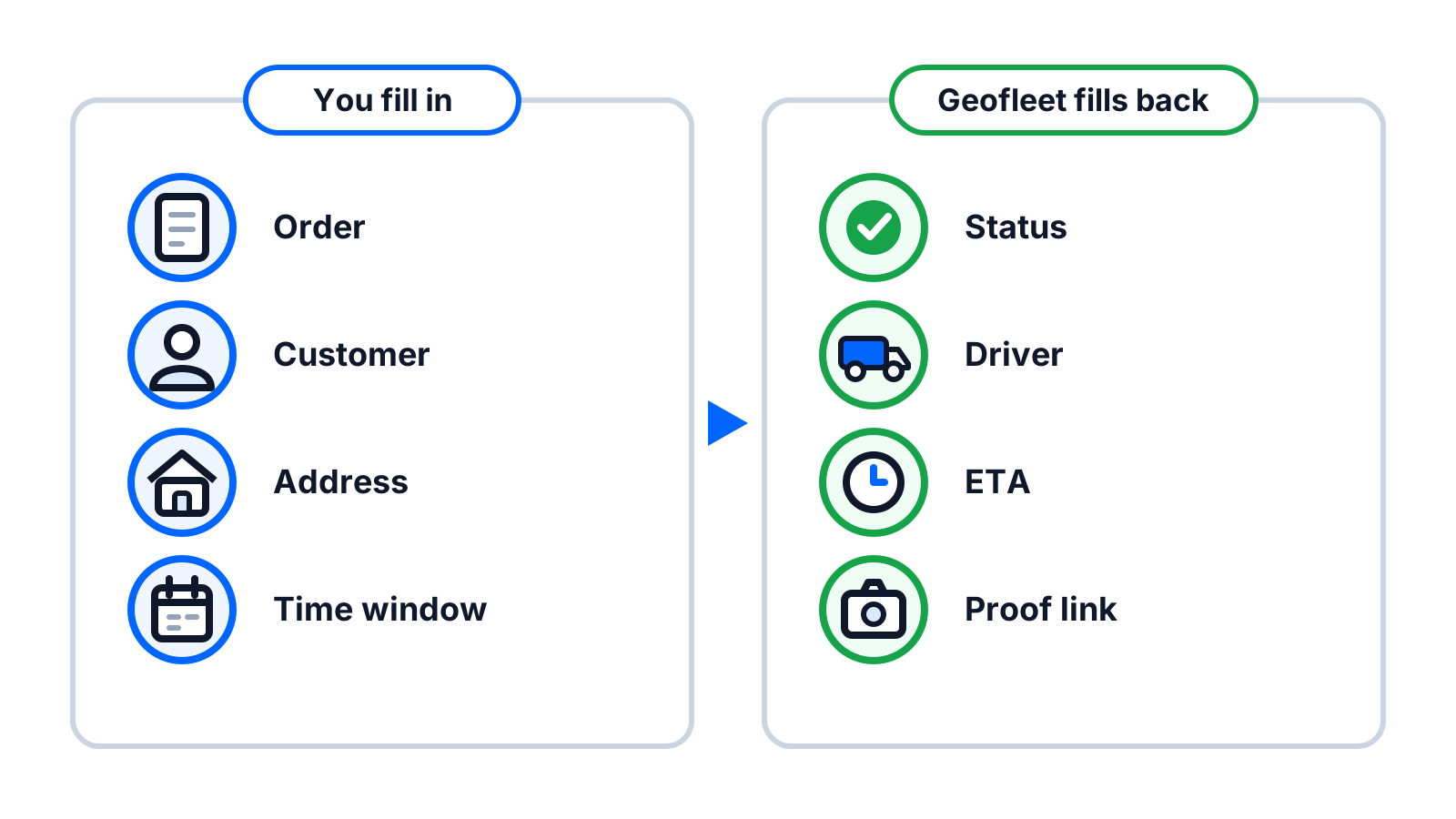
The integration reads one tab of one sheet and expects a header row. Column names can be mapped during setup, so you do not have to rename what you have, but the seven core columns below need to exist in some form. The write-back columns are added by Geofleet if they are missing.
| Column | Direction | Format and notes |
|---|---|---|
| Order ID | Input (required) | Unique per row. Used to de-duplicate and match updates; never reuse an ID for a new order |
| Customer name | Input (required) | Free text; appears on the tracking page and proof of delivery |
| Phone | Input (required) | One number, with country code. Drives SMS notifications and the Captain call button |
| Address | Input (required) | Single cell: street, unit, area, city, postcode. Avoid splitting across merged cells |
| Delivery window | Input (optional) | Date plus start-end time, for example 2026-06-04 14:00-17:00. Blank means default window |
| COD amount | Input (optional) | Number only; blank or 0 for prepaid. Drives cash management |
| Notes | Input (optional) | Gate code, floor, fragile, call before arrival. Shown on the stop card |
| Hub / pickup | Input (optional) | Needed only for multi-hub operations; maps to a Geofleet hub |
| Status | Write-back | New, Dispatched, Out for delivery, Delivered, Failed, Cancelled |
| Captain | Write-back | Assigned Captain name (or your tenant term for drivers) |
| ETA | Write-back | Live estimated arrival, updated as the route progresses |
| Tracking link | Write-back | Branded tracking URL for the customer |
| POD link | Write-back | Link to the proof of delivery (photo, signature, OTP record) |
| Delivered at | Write-back | Timestamp on completion; blank until then |
One row, one delivery
Resist the urge to put multiple parcels for one address on separate rows unless they are genuinely separate deliveries. Each row becomes one stop. If a customer ordered three items, describe them in Notes or a Contents column and keep one row.
How the Sheets integration works: rows in, status out
Ingest
You connect the sheet from the Integrations card under Developer settings, authorise access, choose the tab, and map columns. From then on Geofleet watches the sheet. A new row with an Order ID that has not been seen becomes a new delivery order. A changed row (new address, new window) updates the existing order. Rows with a missing required field are not imported; instead the Status column is set to Needs attention with the reason, so the person who entered the row sees the problem where they entered it.
Dispatch
Imported orders enter the same pool as orders from Shopify, Acumatica, or the API. Auto Allocation assigns them to Captains by zone, capacity, and window, or the Smart Planner batches them into routes for the next wave. The dispatcher no longer reads the sheet to decide who goes where; they read the sheet to see what happened.
Write-back
As each order progresses, Geofleet writes Status, Captain, ETA, Tracking link, POD link, and Delivered at back to the row. Because these are ordinary cells, everything the team already does with Sheets keeps working: conditional formatting to colour rows by status, a filter view of failed deliveries, a pivot for deliveries per Captain, or a chart on a dashboard tab. Nothing about the write-back is proprietary.
Row states
The Status column follows a small state machine: New (imported, unassigned), Dispatched (Captain assigned), Out for delivery (Captain has started the stop), Delivered, Failed (attempted, with a reason), and Cancelled (row marked cancelled in the sheet, or cancelled in Geofleet). Needs attention sits outside the flow for rows that could not be imported. A row never goes backwards on its own; a failed delivery that is retried gets a new attempt on the same row.
Using Google Sheets as a delivery route planner day to day
A typical daily rhythm for a 60-order operation looks like this. The point is that the sheet remains the front door for orders while Geofleet does the work behind it.
- Morning: orders from overnight emails and forms are entered or pasted into the sheet. Needs attention rows are fixed within minutes because the reason is right there.
- Cut-off: the Smart Planner builds routes from all New rows for the morning wave; Captains see their routes on the driver app. Status flips to Dispatched.
- During the day: ad-hoc orders are added as rows and auto allocation slots them onto the nearest Captain with capacity. ETAs update live in the sheet.
- Exceptions: a Failed status with reason appears the moment a Captain records it; the dispatcher calls the customer and either re-queues (new window on the same row) or cancels.
- End of day: filter Delivered rows with a COD amount and compare against cash management; open the POD link for any row a customer queries.
"The thing that surprised us was that nobody had to change tools. The sales team kept adding rows the way they always had. The only difference was that the rows started filling themselves in."
— Owner, regional water delivery business
Data-quality traps and how AI address cleanup helps
Almost every failed delivery in a spreadsheet operation traces back to a data problem that existed before the driver left. These are the ones that come up most, and what to do about each.
Bad or incomplete addresses
Missing unit numbers, a landmark instead of a street, two addresses in one cell, or the city omitted because 'everyone knows'. Geofleet geocodes every address on import and AI address cleanup normalises it: it separates the unit from the street, recognises common landmark phrasing, flags addresses that geocode to a wrong area or to a low-confidence point, and asks for confirmation rather than sending a Captain to a guess. Rows that fail cleanup are marked Needs attention with the specific issue.
Merged cells and layout tricks
Merged header cells, a customer name spanning two rows, subtotal rows inside the data, or colour used to mean something. None of these survive ingestion. Keep one header row, one order per row, and use a Status or Notes column rather than colour to carry meaning. If you need a pretty view for management, build it on a second tab that references the data tab.
Phone formats
Numbers with spaces, dashes, brackets, a leading zero instead of a country code, or two numbers in one cell separated by a slash. The integration normalises the common cases to a single international-format number, but two numbers in one cell will always be a guess. Put the second number in Notes. Also watch for Sheets stripping a leading zero or converting a number to scientific notation; formatting the column as plain text avoids it.
Reused or blank order IDs
A blank Order ID cannot be de-duplicated, and a reused one will update last week's delivery instead of creating a new one. Use a formula that combines the date and the row number, or a simple incrementing sequence, and never edit an ID after the row has been dispatched.
Protect the write-back columns
Use Sheets' range protection on the Status, Captain, ETA, Tracking link, POD link, and Delivered at columns so a well-meaning colleague cannot overwrite them. If someone needs to cancel an order, they set a Cancel flag in an input column rather than editing Status.
When a sheet is enough, and when to move to an OMS
Sheets fail gradually, not suddenly. The table gives the signals that usually mean an operation has outgrown the spreadsheet as its order source, and what the natural next step is. Note that moving the order source does not change how dispatch works; Geofleet keeps running the deliveries either way.
| Signal | Sheet is fine | Time to move | Typical next step |
|---|---|---|---|
| Daily volume | Under roughly 100 orders | Consistently above that, or spiky | Native connector (Shopify) or OMS |
| Who enters orders | One or two people | Customers, many reps, or several channels | E-commerce platform or order portal |
| Order edits | Rare | Frequent edits after dispatch | System with edit webhooks |
| Returns and refunds | Occasional, handled manually | Routine | OMS or ERP with return documents |
| Finance needs | A monthly export is enough | Invoicing on delivery, line-level reconciliation | ERP connector (for example Acumatica) |
| Hubs | One | Several, with transfers | OMS with location awareness |
| Audit requirements | Light | Regulated goods, contractual proof | System of record with access control |
Many operations keep the sheet even after adding a proper order source. A distributor might run its regular customers through an ERP integration and still use a sheet for one-off deliveries, samples, and internal transfers. The comparison post on choosing between Shopify, Acumatica, and Sheets covers running more than one source at once.
The next step
If the signals in the table above are already familiar, the good news is that the sheet has done its job: it proved there is a delivery business here worth systematising. The migration guide, from spreadsheets to a delivery platform, walks through moving the order source without disrupting Captains or customers. If the sheet is still working, connect it, protect the write-back columns, fix the data traps, and let the rows fill themselves in.
Related reading
Frequently asked questions
Can I really use Google Sheets as a delivery route planner?
Yes, as the order source. The sheet holds the orders; Geofleet reads the rows, assigns Captains, plans routes, tracks deliveries, and writes status, ETA, and proof of delivery links back to the same rows. The sheet becomes the live view rather than the planning engine.
What columns does the Google Sheets delivery template need?
Required: Order ID, customer name, phone, and address. Optional: delivery window, COD amount, notes, and hub. Geofleet adds write-back columns for Status, Captain, ETA, Tracking link, POD link, and Delivered at if they do not exist.
How does status get written back to the sheet?
As each delivery progresses, Geofleet updates the row's Status, Captain, ETA, tracking link, proof of delivery link, and delivered timestamp. These are ordinary cells, so conditional formatting, filters, and pivots work on them as usual.
What happens to rows with a bad address or missing phone number?
They are not dispatched. The Status column is set to Needs attention with the reason, so whoever entered the row can fix it in place. AI address cleanup normalises common address problems automatically and flags low-confidence geocodes.
Can several people edit the sheet at once?
Yes, Sheets handles concurrent editing. Protect the write-back columns so they are not overwritten, and use a Cancel flag column instead of editing Status directly. Reused or blank Order IDs are the main risk with many editors.
When should I move from Google Sheets to a proper OMS?
Common signals are consistent volume above roughly 100 orders a day, orders entered by customers or many reps, frequent post-dispatch edits, routine returns, invoicing on delivery, or multiple hubs. The delivery side does not change when you swap the order source.