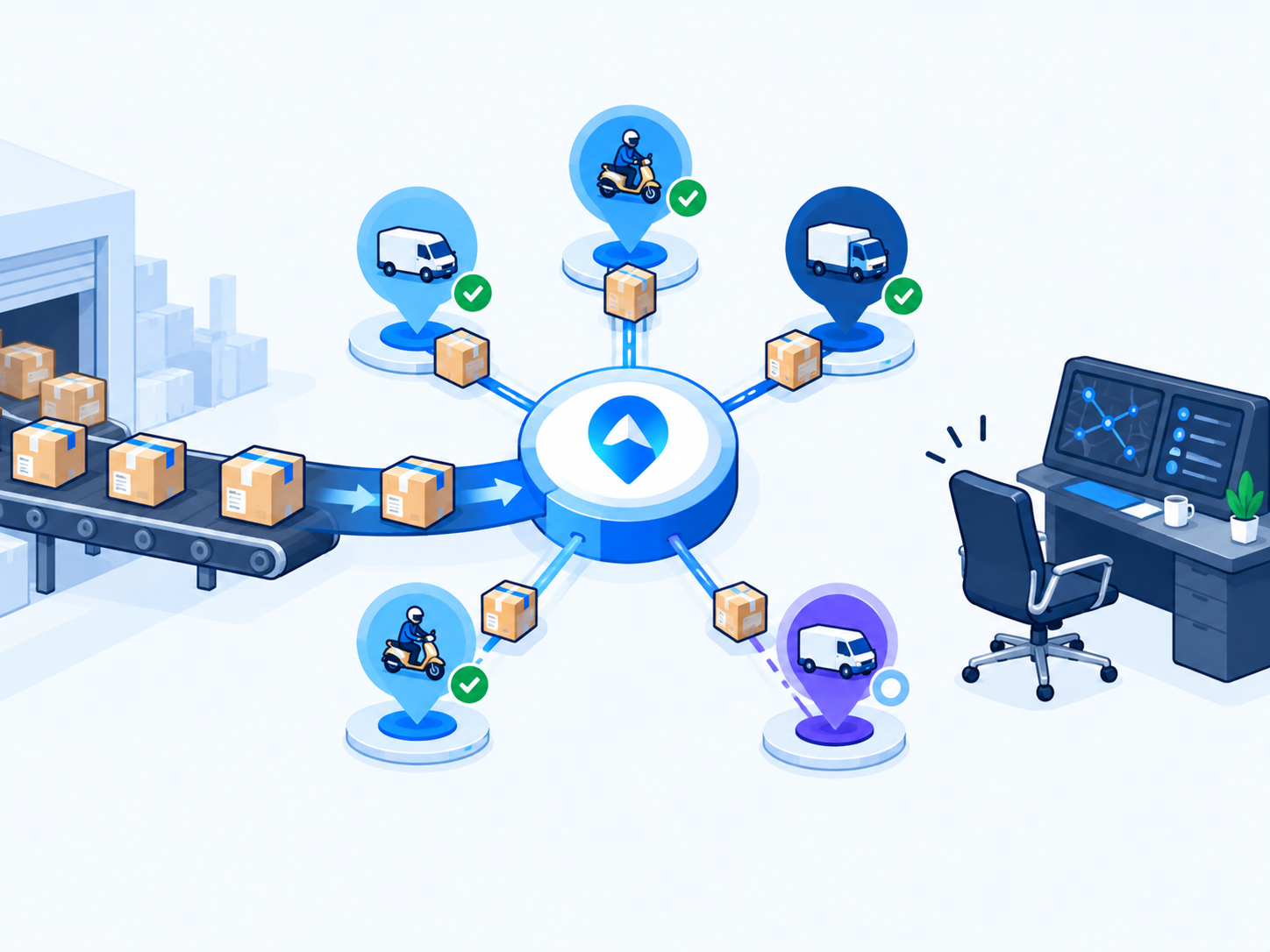
Auto allocation for delivery means the platform assigns each order to a Captain without a dispatcher choosing by hand. That single sentence hides a lot of decisions: what counts as the best Captain, how fast the decision must be made, what to do when nobody is eligible, and how a human takes over when the automation is wrong. Operators who get these decisions right run hundreds of orders an hour with a dispatch team that spends its day on exceptions rather than assignments.
This post explains how Auto Allocation works in Geofleet, from the inputs it considers to the metrics you should watch after switching it on. It sits under Settings, Planning and Automation, next to Planning Profiles and Smart Planner, and the three are designed to be configured together. Auto Allocation is included from the Premium plan ($29 per driver per month).
What Auto Allocation Considers Before Assigning an Order
The common mental model is "send it to the nearest driver." That model breaks the moment the nearest Captain is carrying a full load, driving a bike when the order needs a van, or already at risk of missing a window on their current route. Automatic order assignment has to weigh several factors at once. In Geofleet, the score for each candidate Captain draws on the following inputs.
| Factor | Why it matters | Typical effect on score |
|---|---|---|
| Live location and heading | Detour cost from the current position, not the hub | Closer and on-path scores higher |
| Current load and remaining capacity | Prevents overloading and mid-route hub returns | Hard exclusion if capacity is exceeded |
| Vehicle type | Bikes, vans, reefers, and trucks suit different orders | Hard exclusion if type does not match |
| Skills and certifications | Cold-chain, age-verified, two-person, hazmat | Hard exclusion if a required skill is missing |
| Time-window fit | Can the Captain reach the stop inside the window given existing stops? | Strong penalty for predicted lateness |
| Planning profile rules | Hub, order-type, or Shipper rules such as max stops and window strictness | Applied as constraints and weights |
| SLA risk on existing route | Adding a stop must not push current commitments past their SLA | Penalty scaled by risk created |
| Shift end and breaks | Remaining working time after the new stop | Exclusion if the stop cannot complete in shift |
| Fairness and rotation | Avoids starving some Captains of work | Small tie-breaker weight |
Hard constraints versus weighted preferences
Some inputs are filters: a Captain either can or cannot take the order. Capacity, vehicle type, required skills, and shift end are usually hard. Others are preferences the score trades off: detour distance, lateness risk on existing stops, and fairness. Keeping this distinction clear when you configure the feature matters. Turning a preference into a hard constraint is the fastest way to end up with orders nobody is eligible for.
Why the nearest Captain often loses
A Captain 800 metres away with two stops left and a 20-minute window at risk will usually score lower than a Captain 3 km away with spare capacity and slack in their route. The system is protecting the promise already made to the first customer, not just minimising distance to the new one.
The Decision Loop, in Seconds
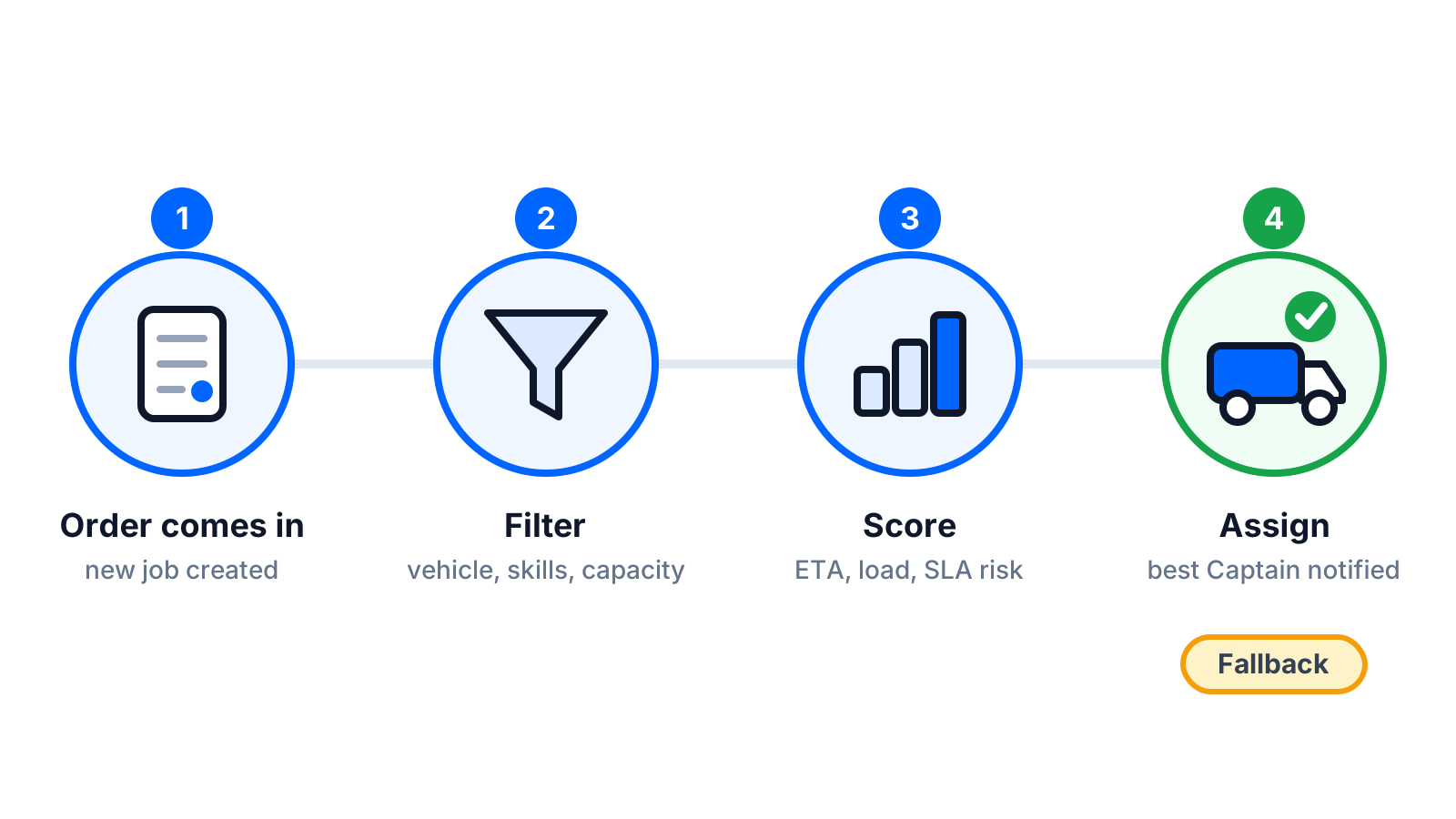
Auto Allocation is event-driven. It runs a short evaluation whenever something relevant changes, rather than waiting for a scheduled batch. A typical cycle looks like this.
- An order becomes allocatable: it is created, passes its cutoff, or is released from a hold.
- The order is resolved to a planning profile, which supplies constraints and weights.
- Candidate Captains are filtered by hard constraints: online, in the right hub or zone, vehicle type, skills, capacity, shift time.
- Each remaining candidate is scored on detour, window fit, SLA risk created, and fairness.
- The top candidate is assigned, or held for approval if a guardrail applies. The Captain sees the stop in the driver app and the customer receives a notification.
- If the Captain declines or does not acknowledge within the configured time, the order goes back to step 3 with that Captain excluded.
Re-evaluation is also triggered by events on the fleet side. A completed drop frees capacity. A Captain going offline releases their unstarted stops. An SLA countdown crossing a risk threshold can prompt the system to look for a better Captain before the order becomes late rather than after. This is what makes auto dispatch software different from a batch planner: it keeps deciding all day.
Fallbacks: What Happens When No Captain Qualifies
There will be orders nobody can take. The fleet is fully loaded, the only cold-chain Captain is off shift, or the window is impossible from anywhere. A good automatic order assignment system treats this as a normal state with a defined path, not an error. Geofleet supports a small set of fallback behaviours that you configure per profile or hub.
- Queue and retry: hold the order in an unassigned queue and re-run allocation on the next fleet event or after a fixed interval. Suitable when capacity frees up predictably.
- Alert the tower: raise an exception to the dispatch console with the reason (no capacity, missing skill, window unreachable) so a dispatcher can act. Suitable for anything with an SLA attached.
- Prompt manual assignment: present a ranked shortlist of near-eligible Captains with the constraint each one fails, so the dispatcher can override knowingly.
- Escalate to next wave or next day: move the order into the next planning wave under Smart Planner and notify the customer of the revised window.
The reason field matters more than it looks. "Unassigned" tells a dispatcher nothing. "No Captain with cold-chain certification online at north hub" tells them exactly who to call. Pair these reasons with the exception runbooks described in the SLA breach post linked below so the response is consistent.
"The first month we ran auto allocation, the biggest change was not the speed. It was that every order that could not be assigned came to us with a reason, so we stopped discovering problems at 5 pm."
— Dispatch manager, multi-city courier operator
Manual Override and Re-Allocation
Automation that cannot be overridden gets switched off. Geofleet keeps three override paths available at all times. A dispatcher can reassign an order to any Captain from the console, with the system flagging any constraint the manual choice violates. A Captain can decline a stop in the driver app, with the decline reason captured, which returns the order to allocation. And a dispatcher can lock an order to a Captain so that later re-evaluations do not move it.
Re-allocation without churn
Continuous re-evaluation can find a marginally better Captain every few minutes. Moving orders each time would confuse Captains and customers. The standard guard is a minimum improvement threshold: an assigned order only moves if the new candidate is materially better on the score, or if the current assignment is now predicted to breach. Orders already accepted or en route are never moved automatically.
Guardrails and Approval Thresholds
Most operators do not switch on full automation on day one. Geofleet lets you scope it. Enable it per hub, per order type, or per Shipper. Set approval thresholds so that orders above a certain value, or with a COD amount above a limit, or tagged as fragile, are proposed rather than assigned and wait for a dispatcher to confirm. Cap the number of automatic reassignments per order. Restrict automation to certain hours and hand back to the tower overnight.
These guardrails are the same pattern described in the copilot and dispatch tower post: the system proposes, the human approves, and every decision is logged with the score and the alternatives considered. As confidence grows, thresholds loosen. A common progression is to start with approval required for everything at one hub for a week, then approval only above a value threshold, then full automation with exception alerts.
Start narrow, widen weekly
Enable auto allocation for one hub and one order type first. Review every assignment the tower would have made differently, adjust weights or profile constraints, and widen scope only when the disagreement rate is low enough that reviewing is no longer worth the time.
How Auto Allocation Works With Planning Profiles and Smart Planner
The three features under Planning and Automation form one system. Planning Profiles hold the rules. Smart Planner uses them to build routes for orders that are known ahead of time. Auto Allocation uses the same rules to place orders that arrive after planning, or that need to move when the day diverges from the plan. A grocery hub might plan two waves with Smart Planner and let Auto Allocation handle express orders and same-day additions on top of those routes.
Because both read the profile, a live-assigned order never violates a rule the planner would have respected. If the pharmacy profile requires a certified Captain and a hard window, Auto Allocation will hold the order rather than assign it to an uncertified Captain, even if that Captain is next door. The companion post on planning profiles explains how to structure those rules.
Metrics to Watch After Switching It On
| Metric | What it tells you | What a bad reading usually means |
|---|---|---|
| Time-to-assign | Median seconds from allocatable to assigned | Too many hard constraints, or fleet visibility gaps |
| Unassigned rate and reasons | Share of orders taking a fallback path, by reason | Capacity or skill shortage at specific hubs or hours |
| Reassignment rate | Orders moved after first assignment | Inaccurate service times, stale locations, or thresholds too loose |
| Captain decline rate | Stops declined in the driver app | Assignments the Captain considers unrealistic; check detour and shift rules |
| Utilisation | Stops per Captain-hour and capacity used | Scoring too conservative, or fairness weight too high |
| On-time rate for auto-assigned orders | Whether automation meets the promise | Window-fit weight too low relative to distance |
| Manual override rate | How often dispatchers change the decision | Inputs the system cannot see; fix data before tuning weights |
Read these together. A low time-to-assign with a high reassignment rate means the system is assigning fast and wrong, which usually points to bad service times in the profile or Captains whose location updates are stale. A high unassigned rate concentrated at one hour of the day is a staffing signal, not a software one. The delivery KPIs post linked below covers how to build these into a weekly review.
Related reading
Frequently asked questions
What is auto allocation in delivery software?
Auto allocation is the automatic assignment of delivery orders to drivers (Captains in Geofleet) without a dispatcher choosing by hand. The platform filters eligible Captains by capacity, vehicle type, skills, and shift, then scores them on detour, time-window fit, and SLA risk, and assigns the order to the best candidate within seconds.
Does auto allocation just pick the nearest driver?
No. Distance is one input. The system also considers current load and remaining capacity, vehicle type, required skills, whether the Captain can reach the stop inside its time window, and whether adding the stop puts existing deliveries at risk. The nearest Captain frequently loses to one with more slack.
What happens if no driver is available for an order?
The order takes a configured fallback path: it can wait in a queue and retry on the next fleet event, raise an alert to the dispatch console with the reason, prompt a dispatcher to assign manually from a ranked shortlist, or move to the next planning wave with a customer notification.
Can a dispatcher override an automatic assignment?
Yes. Dispatchers can reassign any order from the console, lock an order to a specific Captain so it is not moved by later re-evaluation, and set approval thresholds so certain orders are proposed rather than assigned. Captains can also decline a stop in the driver app, which returns it to allocation.
How does auto allocation differ from route optimisation?
Route optimisation (Smart Planner in Geofleet) builds full routes for a known set of orders before the day starts. Auto allocation assigns individual orders continuously as they arrive or as the day changes. Both use the same planning profile rules, so live assignments respect the same constraints as planned routes.
Which metrics show whether auto allocation is working?
Watch time-to-assign, the unassigned rate with reasons, the reassignment rate, Captain decline rate, utilisation, and the on-time rate for auto-assigned orders. Fast assignment with high reassignment usually means inaccurate inputs such as service times or stale locations rather than a problem with the algorithm.