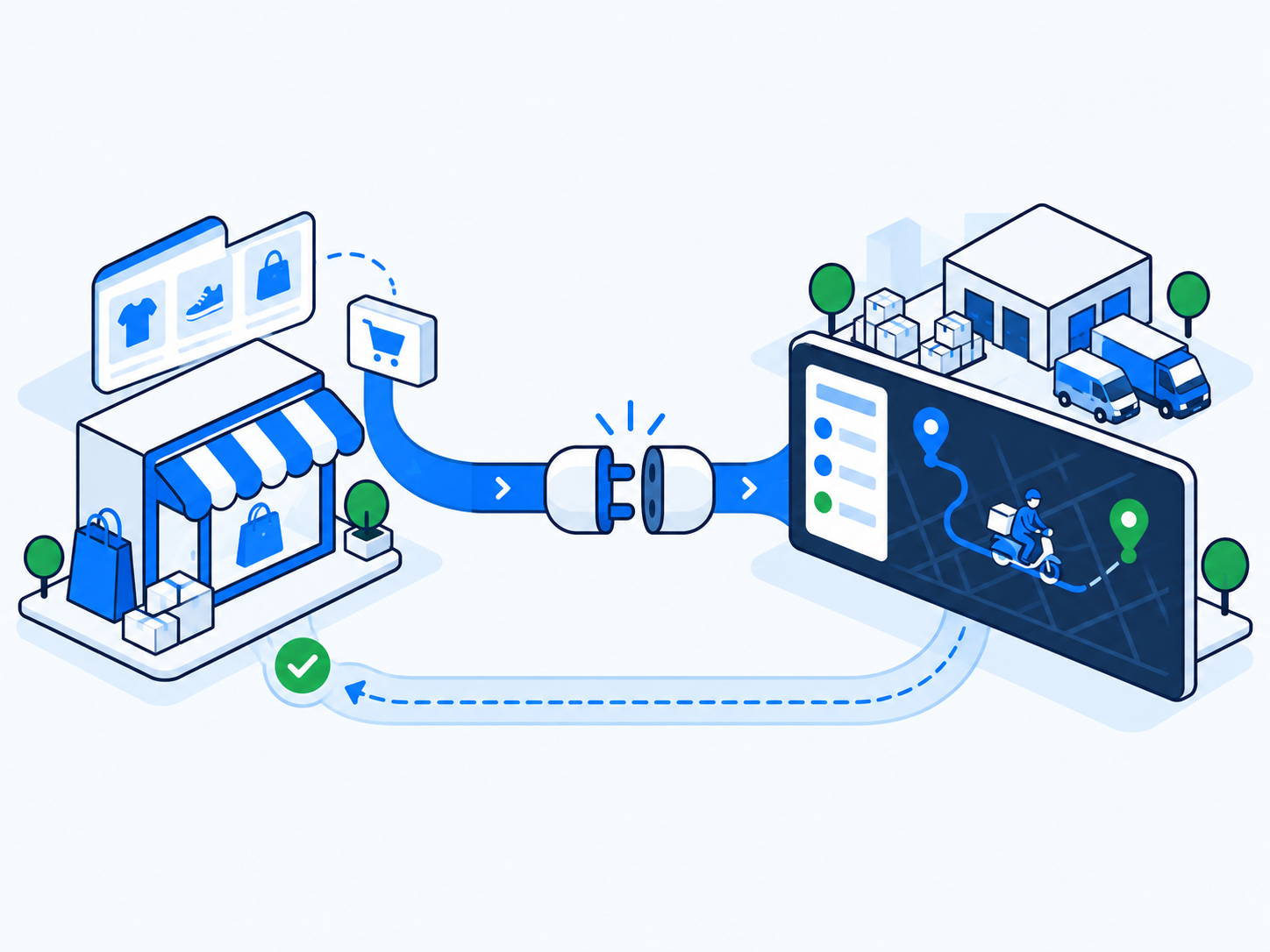
Most Shopify stores that deliver locally start the same way. An order comes in, someone reads it off the admin screen, types the address into a delivery app or a WhatsApp group, and later marks the order fulfilled by hand. It works at twenty orders a day. At a hundred it produces typos, missed orders, and a support inbox full of 'where is my delivery?'. A Shopify delivery management integration removes that human relay: the order flows into dispatch on its own, a driver is assigned on its own, and the status flows back on its own.
This guide walks through exactly how that works with Geofleet, from the moment Shopify fires an order webhook to the moment proof of delivery lands back on the order. It covers setup in the Integrations settings card, field mapping, edits and cancellations, multi-location stores, and the handful of numbers worth watching after go-live.
Why a Shopify delivery management integration beats manual order entry
The case is not really about speed, although speed matters. It is about removing a class of errors that only exist because a person is retyping data. Every manual step between the checkout and the driver is a place where an apartment number gets dropped, a phone number loses a digit, or an order is simply forgotten during a rush.
- No retyping: the address, phone, line items, and notes arrive exactly as the customer entered them.
- No dispatch lag: auto allocation can assign a Captain within moments of payment instead of when someone next checks the admin.
- No status drift: the Shopify order reflects the real delivery state, so support does not have to ask the dispatcher.
- Customer messaging stays in Shopify: the tracking link rides along in the shipping confirmation the store already sends.
- One source of truth for finance: delivered timestamps and proof of delivery sit against the order, not in a chat thread.
If you are still deciding whether the native Shopify local delivery app is enough, there is a section on that further down. Short version: it is fine for a single store with one or two drivers, and it runs out of road quickly once you need routing, automatic assignment, or cash handling.
What happens when an order arrives: the end-to-end flow
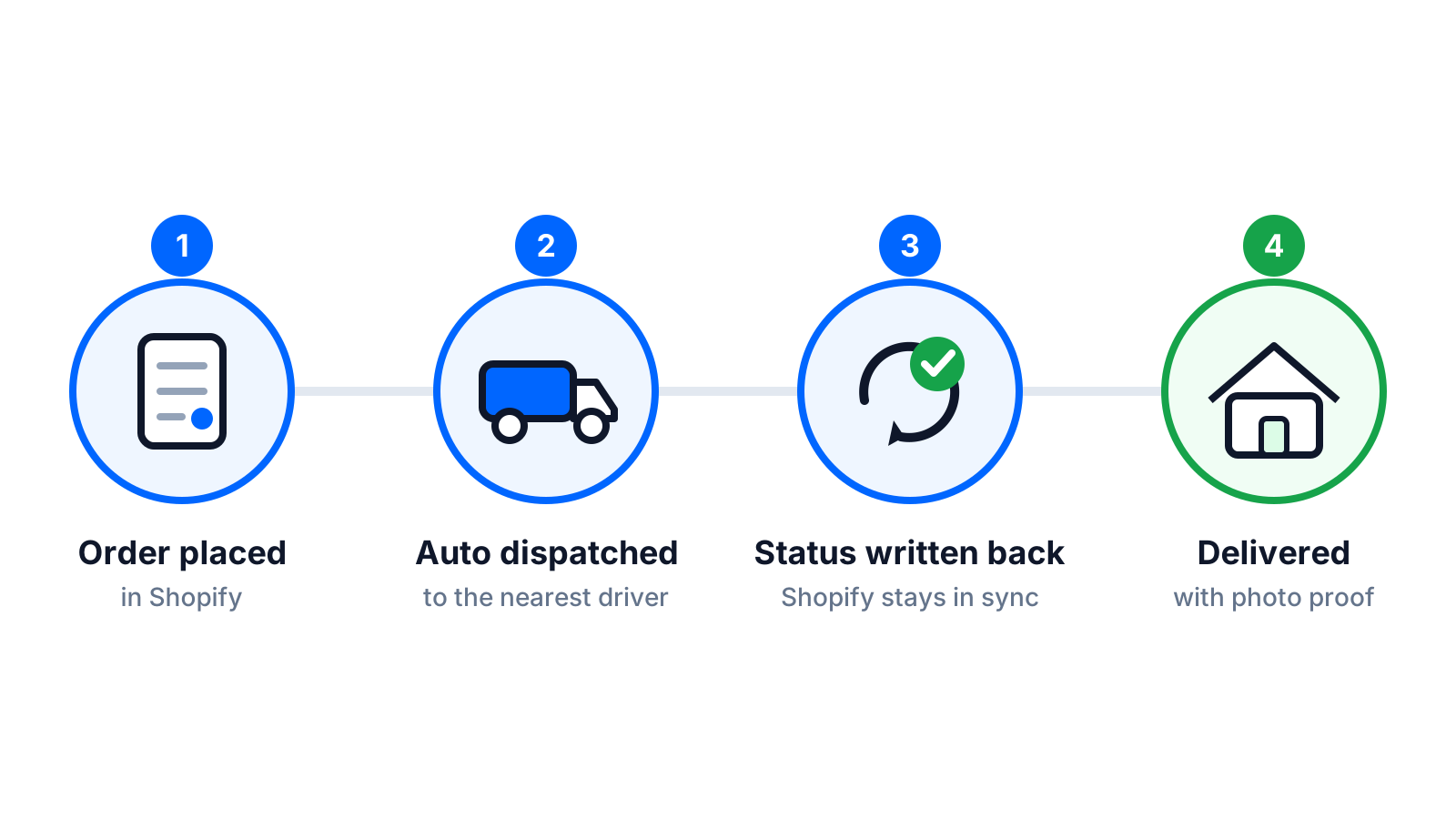
1. Order webhook to Geofleet order
When a Shopify order is created (or paid, depending on the trigger you choose), Shopify sends a webhook to Geofleet. Geofleet creates a delivery order carrying the Shopify order number, customer name and phone, shipping address, line items, any delivery instructions from the checkout notes field, and the payment state. The Shopify order ID is stored as the external reference so every later update can be matched back without ambiguity.
2. Auto allocation assigns a Captain
With Auto Allocation (included from Premium) enabled under Planning and Automation, the new order is evaluated against the active Captains, their current load, vehicle constraints, service zone, and the delivery window. The best match receives the job on the driver app. If your operation batches deliveries into waves, the order waits in the planning pool and the Smart Planner builds it into the next route instead. Either way, nobody has to look at a screen and pick a name. The mechanics of how orders get assigned without a dispatcher are covered in a separate post linked below.
3. Status write-back to Shopify
This is the step that makes the integration bidirectional. As the Captain progresses, Geofleet updates the Shopify order: a fulfillment is created when the order is assigned or picked up, the shipment status moves to out for delivery when the Captain starts the drop, and it moves to delivered on completion. A failed attempt is surfaced as an attempted delivery event rather than silently leaving the order open.
4. Branded tracking link in Shopify customer notifications
Geofleet passes a tracking URL back with the fulfillment. Shopify includes that URL in its shipping confirmation and out-for-delivery emails automatically, so you do not have to build a separate notification flow. Because the link uses your Tracking URL Configuration, the page the customer opens carries your store branding, the live map, and the ETA, not a third-party logo.
5. Proof of delivery closes the loop
On completion, the Captain captures a photo, signature, or OTP as configured. The proof of delivery is attached to the Geofleet order and the delivered event is written to Shopify with the timestamp. If a customer disputes a delivery later, support opens the order in either system and sees the same evidence.
"We used to have one person whose entire morning was copying orders from Shopify into the driver group. Now that person handles exceptions instead, and the exceptions are fewer because nobody is retyping addresses."
— Operations manager, D2C grocery brand
Setting it up in the Integrations settings card
The connection lives under Developer, then Integrations, where Shopify has its own card alongside SMS gateways and other connectors. The setup itself is short; the time goes into confirming the mapping and running test orders.
- Open the Shopify card in Integrations and connect your store. You will authorise Geofleet to read orders and write fulfillments.
- Choose the trigger: order created, or order paid. Most stores that take COD choose created; card-only stores usually choose paid to avoid dispatching unpaid carts.
- Pick which orders qualify: by shipping method (for example, only orders where the customer selected local delivery), by location, or by tag.
- Review the field mapping (next section) and set defaults for anything Shopify does not send, such as a default delivery window or service type.
- Enable status write-back and confirm the tracking URL template under Customization, then Tracking URL Configuration.
- Place two or three test orders in a development store or with a test tag, watch them arrive, get assigned, and complete, then check the Shopify order timeline.
Filter before you dispatch
Not every Shopify order is a delivery. Pickup orders, gift cards, and orders shipped by a national carrier should never reach the dispatch pool. Scope the integration by shipping method or tag on day one so the Captains only ever see real local deliveries.
Field mapping: what moves from Shopify to Geofleet
Shopify's order object is rich, but delivery only needs a subset of it. The table shows the fields most operations care about and where they land. The ones that cause trouble are the ones Shopify does not enforce: delivery notes, time windows, and the second address line.
| Shopify field | Geofleet field | Notes |
|---|---|---|
| Order number / ID | External reference | Used for matching every later update and for the tracking page |
| Shipping address (lines 1-2, city, postcode) | Delivery address | Geocoded on arrival; AI address cleanup flags unit numbers hidden in line 2 or notes |
| Customer phone / email | Recipient contact | Drives SMS and email notifications; phone format is normalised |
| Order note / delivery instructions | Delivery notes | Shown to the Captain on the stop card, for example gate codes |
| Requested delivery date or slot (app or checkout field) | Time window | Comes from a checkout extension or line-item property; set a default if absent |
| Financial status + payment gateway | COD amount | Cash on delivery orders carry the amount to collect; paid orders carry zero |
| Line items and quantities | Package contents | Used for load planning and shown on the proof of delivery |
| Location ID | Pickup hub | Multi-location stores map each Shopify location to a Geofleet hub |
Time windows
Shopify has no native delivery slot field. Stores typically capture it with a date picker app or a checkout extension, and it lands as an order attribute or line-item property. Map that attribute to the Geofleet time window during setup. If a store has no slot picker, set a default window (for example same day before 8pm) so auto allocation has something to plan against.
Cash on delivery
When the payment gateway is COD, the order total becomes the amount to collect. The Captain sees it on the stop, records the collection, and cash management reconciles it against the order at end of day. If the order is partially paid or a refund was issued in Shopify before delivery, the amount is recalculated. The COD operations guide linked below covers what happens on the reconciliation side.
Handling edits, cancellations, and multi-location stores
Order edits
Customers change their minds. Shopify sends an order updated webhook when an address, phone, or line item changes. Geofleet applies the change to the delivery order and, if the order is already assigned, pushes an update to the Captain's stop. An address change large enough to move the stop out of the Captain's zone triggers re-allocation rather than a silent update.
Cancellations
A cancelled Shopify order cancels the delivery. If the Captain has not started the stop, it disappears from their route. If they are already en route, the stop is flagged as cancelled with an alert so dispatch can decide whether to recall the parcel. Either way the cancellation is logged against the order so nobody delivers a cancelled item and then argues about the refund.
Multi-location stores
Shopify assigns each fulfillment to a location. Map every location to a Geofleet hub, and the integration will route the order to the right pickup point automatically. Captains are scoped to hubs, so a Captain based at the north store only sees orders fulfilled from the north store. This is also how a single brand with three city stores keeps three separate dispatch pools without three separate setups. For larger networks, the multi-hub scaling guide linked at the end goes deeper.
One more detail that matters here: Shopify may deliver the same webhook more than once. Geofleet de-duplicates on the Shopify order ID, so a repeated webhook updates the existing delivery rather than creating a second one. If you have ever seen two drivers turn up for one order, that is the bug this prevents.
What to measure after go-live
Give the integration two weeks of live traffic, then compare a small set of numbers against the manual process it replaced. The reports and analytics module has all of these, but they are worth pulling out on their own.
- Dispatch lag: time from Shopify order created to Captain assigned. Manual processes usually sit at 20-60 minutes; the integration should bring it to a few minutes or less.
- First-attempt delivery success: the share of orders delivered on the first visit. Cleaner addresses and notes should push this up.
- Support tickets per 100 orders tagged delivery status: with tracking links in the Shopify emails, this should fall.
- Orders with missing or invalid addresses caught before dispatch: a proxy for how much AI address cleanup is saving you.
- Status write-back failures: should be near zero; anything above that points to a permission or mapping problem.
Illustrative example
A 150-order-a-day store that moved from copying orders by hand to the Shopify integration might see median dispatch lag fall from roughly half an hour to a couple of minutes. The exact figure depends on your trigger and allocation rules; the point is that the queue of unassigned orders stops building up during peak hours.
Is a Shopify local delivery app enough?
Shopify's built-in local delivery and the lightweight Shopify local delivery apps in the app store cover the basics: a delivery radius, a flat fee, and a simple driver list. They are a fair starting point for a single store doing a handful of drops a day. They do not do automatic assignment, route planning across multiple drivers, live tracking pages under your brand, proof of delivery with signatures and OTP, or cash on delivery reconciliation.
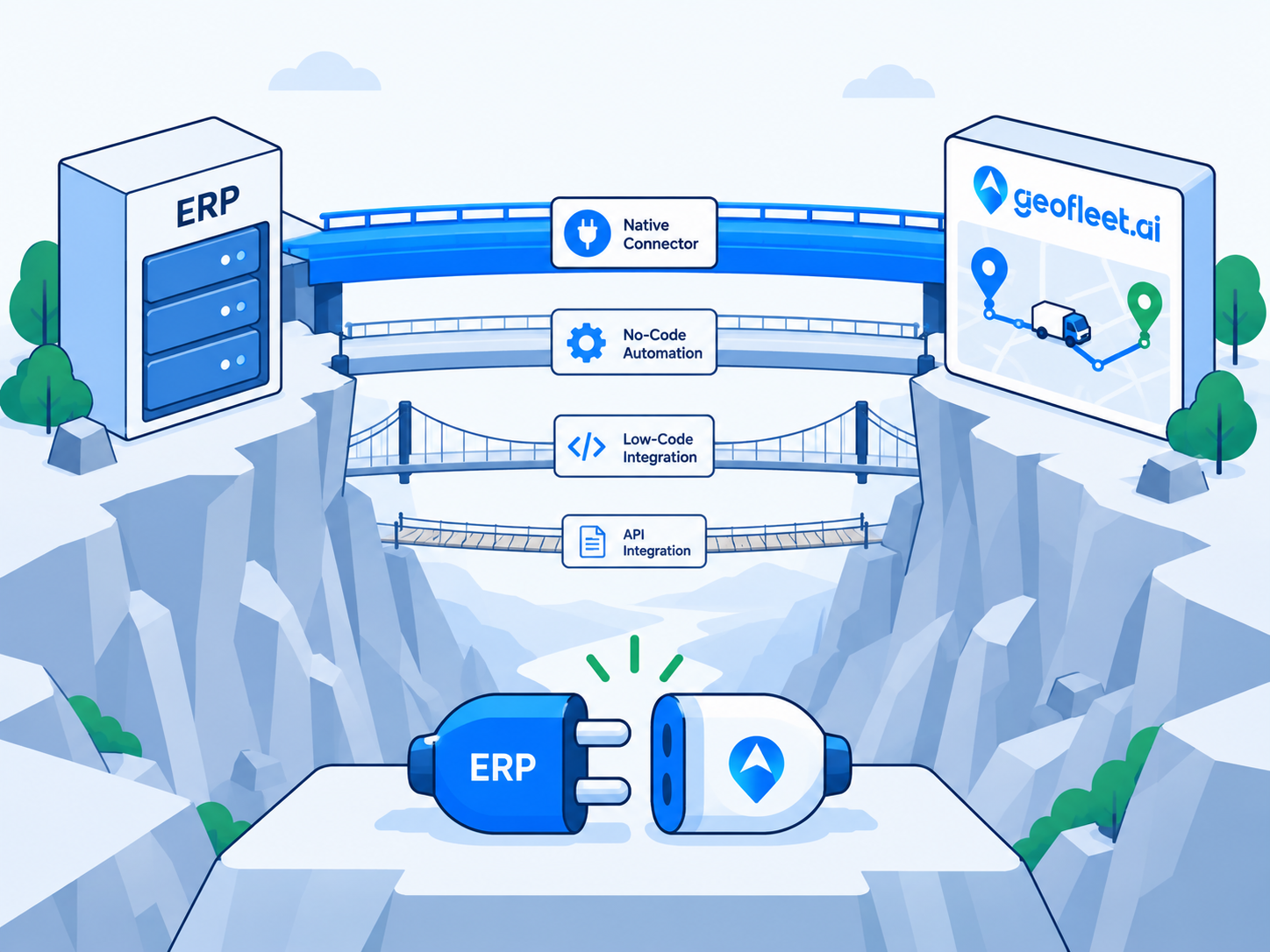
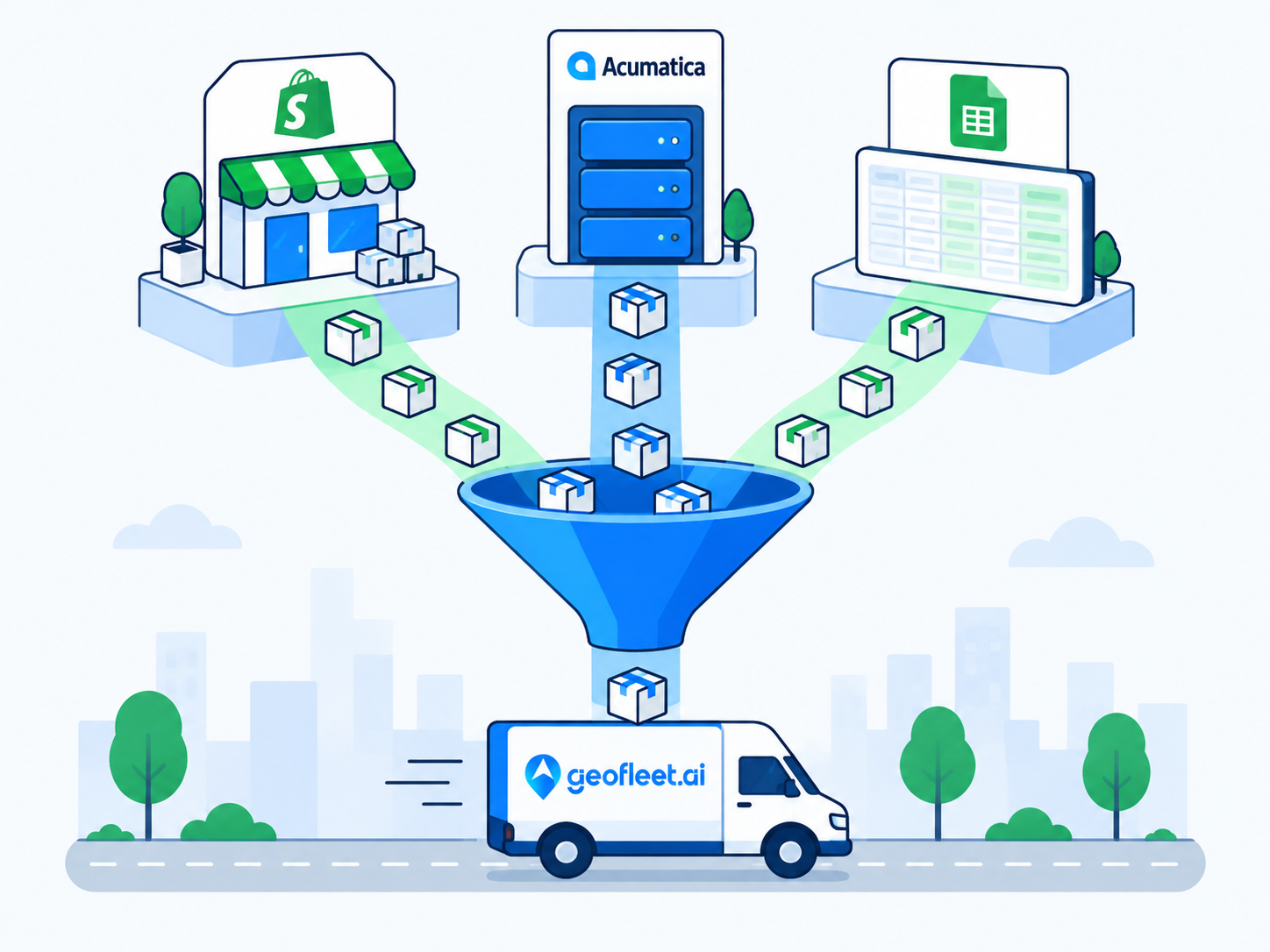
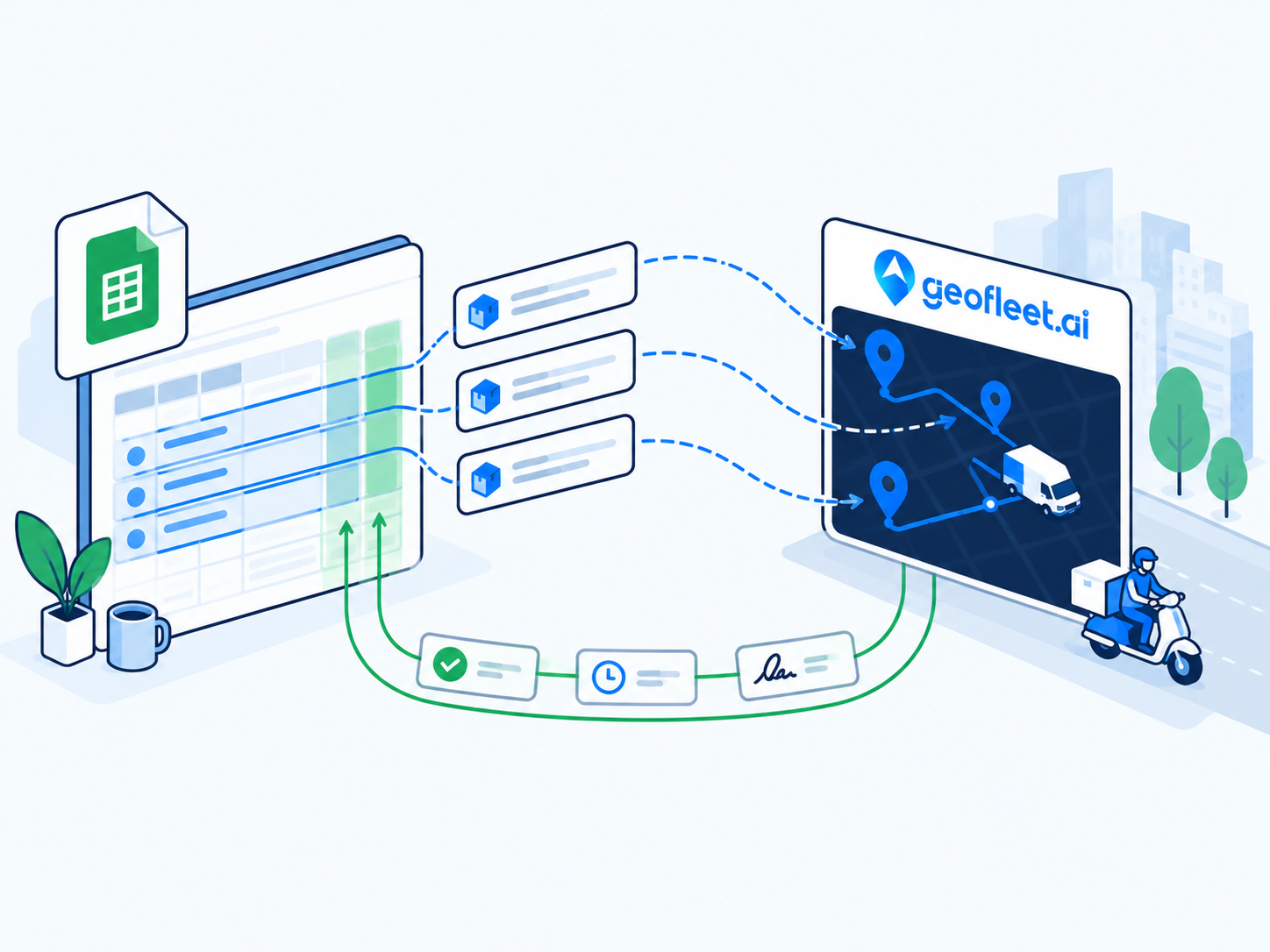
The trigger to move up is usually one of three things: a second driver, a second location, or the first serious dispute over whether a parcel was delivered. At that point a dispatch platform connected to Shopify is the pragmatic step, and the setup above takes an afternoon, not a project. If your order data also lives in an ERP or a spreadsheet, the comparison post on choosing an order source will help you decide what to connect first.
Related reading
Frequently asked questions
How does the Geofleet Shopify integration get orders from my store?
Shopify sends an order webhook to Geofleet when an order is created or paid, depending on the trigger you choose. Geofleet creates a delivery order with the address, contact details, line items, notes, and payment state, and stores the Shopify order ID as the external reference so later updates match correctly.
Does delivery status sync back to Shopify?
Yes. Geofleet creates a fulfillment on the Shopify order and updates it as the Captain progresses: out for delivery when the drop starts, delivered on completion, and an attempted-delivery event if the stop fails. The branded tracking URL is attached to the fulfillment so Shopify includes it in its own customer emails.
Can I use it with more than one Shopify location?
Yes. Each Shopify location is mapped to a Geofleet hub. Orders are routed to the hub matching their fulfillment location, and Captains scoped to that hub are the only ones considered for auto allocation.
What happens if a customer edits or cancels an order after it is dispatched?
Shopify sends an update or cancel webhook. Address and contact edits are pushed to the Captain's stop; a large address change triggers re-allocation. A cancellation removes the stop if it has not started and flags it with an alert if the Captain is already on the way.
How are cash on delivery orders handled?
When the Shopify payment gateway is COD, the order total is mapped to the Geofleet COD amount. The Captain sees the amount to collect, records it on delivery, and cash management reconciles collections against orders at the end of the shift.
Is a Shopify local delivery app enough for a small store?
For one store with one or two drivers and a simple radius, the native local delivery feature is often sufficient. Once you need automatic assignment, multi-driver routing, branded live tracking, proof of delivery, or COD reconciliation, a dispatch platform connected to Shopify is the practical next step.